Ordering Objects
When you add objects to TheView, they are stacked in the order they were added. Sometimes you must modify the stack order to get the desired visual results. The Draw menu has options for you to change the order. They are: Bring to Front, Send to Back, Bring Forward, and Send Backward.
Bring to Front and Send to Back send the object to the top or the bottom of the stack, respectively. Bring Forward moves the object up one position. Send Backward sends the object down one position. You can use the commands on multiple objects at a time.
|
Box Object Brought to Front |
Box Object Sent to Back |
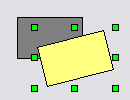
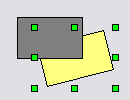
To Bring an Object to the Front
- Select the object you want in the front.
- Click the Bring to Front tool
 in the Format bar, or select Draw > Order > Bring to Front, or press Ctrl+F on the keyboard.
To Send an Object to the Back
- Select the object you want in the back.
- Click the Send to Back tool
 in the Format bar, or select Draw > * Order > * Send to Back or press Ctrl+B on the keyboard.
To Bring an Object Forward
- Select the object to move.
- Select Draw > * Order > * Bring Forward.
To Send an Object Backward
- Select the object to move.
- Select Draw > * Order > * Send Backward.

